Wednesday, December 10, 2014

Wordless Wednesday


What fun Holiday STEM projects are you doing this year?


My kids really enjoyed {THIS} activity that challenged them to help Rusty the elf light a path showing Santa's reindeer where to land!

Head on over to Miss DeCarbo at Sugar & Spice for more Wordless Wednesday posts!


Tuesday, December 9, 2014

3 Little Pigs Project-Based Learning: Tried it!


I am linking up with Fourth Grade Flipper today for Tried it Tuesday! This happens on the second "Twosday" of each month!


Ever had a good idea that just kind of sparked your imagination?

That's what happened here! My friend and fellow 3rd grade teacher, Lora, and I were planning a simple STEM activity to go with a story in our reading series about a house. Lora suggested we do the 3 Little Pigs- houses blown down and all that jazz.  This "little" idea turned into a humongous project that included Project-Based learning, Problem-Based Learning, STEM, literacy comprehension activities, and persuasive writing! All rolled into one! Covering tons of our standards! Not to mention loads of learning fun!

The Launch: Reading The 3 Little Pigs to the students.  We read a slew of different versions!

The Problem: How do you build a house the Big Bad Wolf cannot blow down?  Engineering Design Process to the rescue!


The Solutions: Wow, our kiddos came up with some inventive houses!  Give kids some tape and paper and you are good to go! Obviously a few more materials were provided...


The test: Turning our hairdryers into the Big Bad Wolf!  Can your house withstand 1 wolf or how about 2 wolves (hairdryer on high)?


Not done yet! Students then had to persuade other "pigs" to buy their house with persuasive ads and posters!

They had to answer questions such as: Why would a pig buy my house over another one?  What would it cost to build my house?  What words and images can I use to entice buyers?  Can you all say rubrics?!


We continued the project by reading different versions of The 3 Little Pigs. We discussed sequencing, main idea and theme, cause and effect, fact and opinion, and characterization to name a few!

Tons of fun- oh, and learning- was had by all...well, maybe all except the Big Bad Wolf!

Check out the products I developed for this project! I divided the activities into a Literacy and Project Based products, and of course, a discounted BUNDLE!


Have you done anything exciting in your classrooms lately? We love to hear what you all are doing!


Sunday, December 7, 2014

Sunday Scoop {12/7/14}


The Sunday Scoop is based on the popular 3-2-1 graphic organizers so many of us use with our students. Tell us three things you HAVE to do, two things you HOPE to do, and one thing you're HAPPY to do (because these days, we could all use a little motivation to find something to be happy about every week!). It's a short and sweet way to connect with each other every Sunday (or Monday... the linky will stay open all week!)
Here's what to do:
1. Just save the image above, add your text to it (we use PowerPoint), and post! You don't even have to explain yourself any further if you don't want to.
2. Include the button above and a link to our  blog on your post.
3. Link our post up here on Sunday morning (or whenever :) )
4. Be a good blog reader, and leave some love for the two posts before yours!

Here's the Scoop on my week...


That's right... I will only have half of my class on Tuesday because the other half will be on our school choir's Christmas tour. (Can you believe HALF of my class is in choir?) I don't want it to be a wasted day, but I also want the kids who stay to have fun. If you have some great holiday activities, I'd love to see them!

I've been working hard on a TPT/Blog planner in Excel with formulas and graphs that do half of the work for me you. It's looking SO good, and I can't wait to get it posted!

I am so blessed to be able to sing as a part of our worship team this morning. I can't wait to worship and sing praises to the King with my church family!

What are you up to today? Link up below and share your scoop!


    An InLinkz Link-up
   

Thursday, December 4, 2014

Tech Thursday: PowerPoint Shortcuts


Technology Thursday is a weekly linky dedicated to all things technology related. Share reviews of websites or apps you've tried, tech tips that make your {teaching or personal} life easier, and helpful tutorials. Our hope is that this linky provides a place for teachers to share and learn new ways to use technology and engage students!

Be a rule follower!
Rule #1: Include the image above and a link to our blog somewhere in your post.
Rule #2: Be a good blog reader...visit the two blogs who link up before you and leave some love on their pages!
Rule #3: This linky is not intended for product promotion. You may include products you've created in your posts, but they should not be the sole focus of the post.


I absolutely love, love, love shortcuts.  I always look for a way to work smarter- not harder and shortcuts are a great way to ensure the "smarter" you is in charge!


PowerPoint has a lot of great shortcuts.  Here are a few of my favorites.

(Reminder:  I am a PC kind of girl and I am working on Microsoft Office 13.)

Inserting a Text Box

This is "mouse" down my all time favorite shortcut for PowerPoint!

I really insert a lot of text boxes into PowerPoint. I mean a lot! I went searching for the shortcut and finally found it.  

Press ALT, then N, and then X.  In that order.  You don't have to hold them down.
Next, click your left mouse button, and your text box will appear with the cursor inside.

Use the Keyboard to Access the Ribbon

Every time you take your hands off of the keyboard to touch your mouse, you lose time.  And who wants to waste time?  Not me!  You can actually access sections of the ribbon right from your keyboard.

Ready for the trick.....

Hit ALT.  Yep.  That's the trick!

Little black boxes with letters in them will appear on your ribbon.  These are the letters to access that part of the ribbon.  

Hit the letter to match the selection that you want!


For example, I am on the Home Tab.  I want to Insert something.  I press ALT and then I see a black box with the letter N by Insert.  I press N and I am now on the Insert Tab.  Now I can hit "P" to insert a picture.  

No need to remember all of the letters...they are displayed for you!

Group and Ungrouping Shapes

Select the shapes you want to group by using Control and clicking on the objects.

Hold down CTRL and G to group items.

Hold down CTRL, SHIFT, and G to ungroup items.

Select All

This is a great tip if you are wanting to save a design you have made as a picture.  To do this you have to select all of the graphics at one time.  You can click, hold, and highlight with your mouse but sometimes things move or you miss an object.  This shortcut takes care of all of that.

Hold down CTRL and A.  Awesome!

Show a Grid or Guide
Okay, I must admit...I didn't even know there was a guide or a grid...but great for centering things!

Hold down ALT and then press F9.  Press again to remove.  This gives you a guides (horizontal and vertical line).


Hold down SHIFT and then press F9.  Press again to remove.  This gives you a grids (smaller squares).


Display the Context Menu

Hold down SHIFT and then press F10.

Great if you want grids and rulers.

Old Standbys

Cut Selected Object:  CTRL + X

Copy Selected Object:  CTRL + C

Paste Selected Object: CTRL +  V

Undo Last Action:  CTRL + Z

Redo Last Action:  CTRL + Y

Copy Formatting Only:  CTRL + SHIFT + C

Paste Formatting Only:  CTRL + SHIFT + V


Now you are probably wondering, "How am I ever going to remember all of these?" Check out my previous blog post giving you a quick and easy tip on how to learn shortcuts!


Monday, December 1, 2014

TPTCYBER sale - What's on your wishlist?


By now I'm sure you've heard that the TPT Cyber Monday & Tuesday sale starts TODAY! I'm excited about getting home from work and clearing out my wishlist full of amazing products!

It's always fun to see what everyone else is buying for their classrooms, and I discover some of the best products this way, so today, we're linking up with Jivey to share what's on our wishlists...

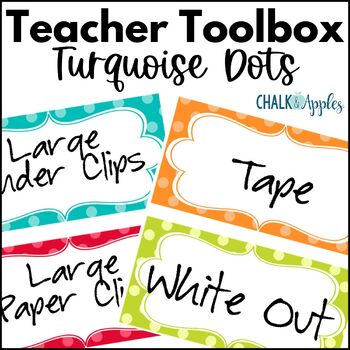
At Chalk & Apples, my #1 wishlisted item is an oldie, but a goodie...my very first TPT product EVER... my Turquoise Dots Teacher Toolbox Kit! It's been updated several times, but it remains my best seller & top wishlisted item.


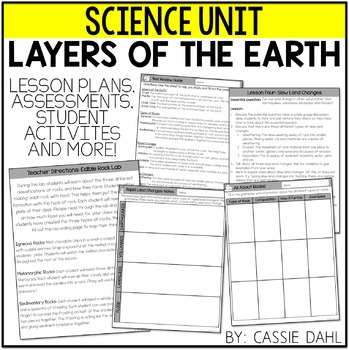
The top wishlisted item at Cassie's Funky in Fourth store is her Layers of the Earth Unit. Buyers love all the graphic organizers and the included lab activities!

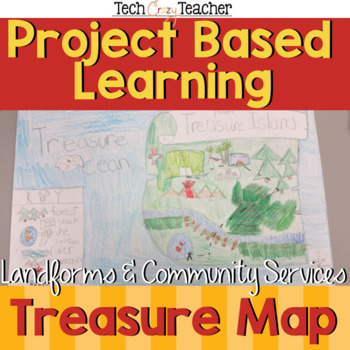
Most wishlisted at Juliet's store, Tech Crazy Teacher is her Island Treasure Map project. In this fun and engaging activity, students use many different map skills to create their own island and hide a treasure on it! Includes everything you need, even antique paper, and a rubric for easy assessment. 
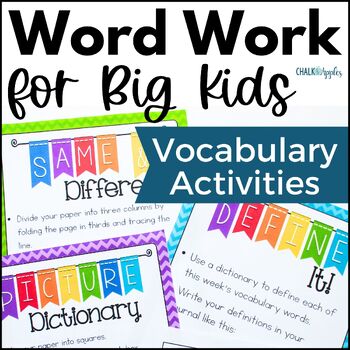
#2 from Chalk & Apples is my Word Work for Big Kids! I created this product out of a need in my own classroom for some challenging word work activities that I could use over and over with our vocabulary words in my 5th grade class, and I still use it daily! PS - It's also included as a freebie with my Growing Vocabulary Roots: Morphology Word Study Unit 1, so don't buy it twice!

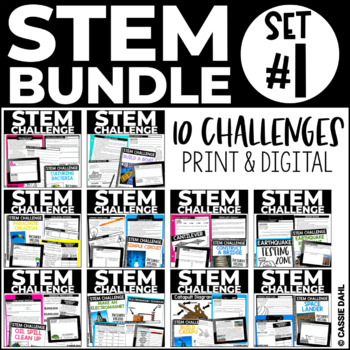
Second from Funky in Fourth is Cassie's STEM Challenge Series Bundle. This bundle is still in progress, but will include TEN great STEM activities by January.  Each challenge includes complete lesson plans, student recording sheets, and tips.

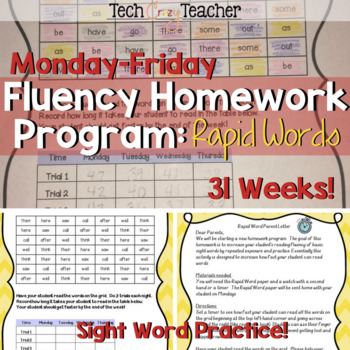
Juliet's second most wishlisted item is her Rapid Words Sight Word Fluency Program. This complete program provides fun and engaging weekly homework for practicing sight word fluency throughout the entire year! Everything you need is included. 

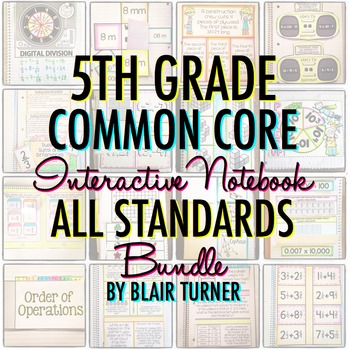
This one is HUGE, so I've been waiting for a sale to buy it... I can't wait to get Blair Turner's Interactive Math Notebook Bundle for 5th Grade! It is chock full of interactive notebook templates & lessons for everything we teach, and I can't wait to start using it with my fifthies! 
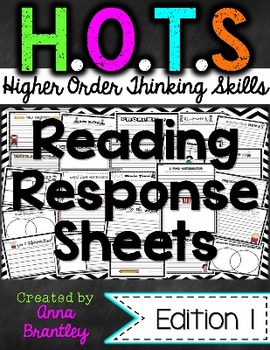
Cassie can't wait to start using The Brown Bag Teacher's Reading Response Letters. These look like such a great way to start conversations with each student about the books they are reading! Juliet is looking forward to challenging her students to think more deeply about what they've read by using Anna Brantley's HOTS Reading Response Sheets. I love them too... if she made them for 5th grade, they'd be on my wishlist in a heartbeat. What's on your wishlist? Head over to Ideas by Jivey to link up!