Sunday, November 9, 2014

Sunday Scoop {11/9/14} + Giveaway Winner!


The Sunday Scoop is based on the popular 3-2-1 graphic organizers so many of us use with our students. Tell us three things you HAVE to do, two things you HOPE to do, and one thing you're HAPPY to do (because these days, we could all use a little motivation to find something to be happy about every week!). It's a short and sweet way to connect with each other every Sunday (or Monday... the linky will stay open all week!)
Here's what to do:
1. Just save the image above, add your text to it (we use PowerPoint), and post! You don't even have to explain yourself any further if you don't want to.
2. Include the button above and a link to our  blog on your post.
3. Link our post up here on Sunday morning (or whenever :) )
4. Be a good blog reader, and leave some love for the two posts before yours!

Here's the Scoop on my week...

So... I am pretty pumped about starting math workshop with my kiddos. They have been working so hard the last few weeks in math (and during our Daily 5 time). I think it is finally time to start with Math Workshop. I have waited this long because this group of kiddos had never experienced small group rotations like this for reading or math before. I didn't want to overwhelm them with both workshop and Daily 5. I am SO excited because we received our iPods through Donors Choose so that will be a new technology rotation!

Of course... nothing is more exciting than announcing a giveaway winner! Thank you all so much for entering our "New Birdie Giveaway". The winner is...


Thursday, November 6, 2014

Tech Thursday: PowerPoint Potential!


Technology Thursday is a weekly linky dedicated to all things technology related. Share reviews of websites or apps you've tried, tech tips that make your {teaching or personal} life easier, and helpful tutorials. Our hope is that this linky provides a place for teachers to share and learn new ways to use technology and engage students!

Be a rule follower!
Rule #1: Include the image above and a link to our blog somewhere in your post.
Rule #2: Be a good blog reader...visit the two blogs who link up before you and leave some love on their pages!
Rule #3: This linky is not intended for product promotion. You may include products you've created in your posts, but they should not be the sole focus of the post.

This week, we are excited to introduce a new series of Technology Thursday posts...


I know many of you already know this, but some may not... PowerPoint is NOT just for creating presentations! In fact, I probably use PowerPoint more than any other Office program these days. Unless I'm typing a paper (Word) or dealing with data (Excel), chances are good that I'm creating in PowerPoint.

Why, you ask? Freedom. Sweet Freedom! PowerPoint kind of lets you do whatever you want... there are no "lines" or margin to deal with like there are in Word. You can layer things on top of each other all day long and manipulate them in tons of ways!

Our first tutorial is simple, but important... How to change slide sizes and print from PowerPoint. Here goes:

One of the first issues you may have thought of with using PowerPoint for something other than presentations is that the slides are not the same size as paper. Fortunately, this is an easy fix!


Open a new PowerPoint file. Select the Design tab at the top of the screen. Click Slide Size and then select Custom Slide Size.


I know a lot of people set their size to 8.5x11 because that's paper size, but I like to set my slide size at 8x10.5 so I don't have to worry about margins. Either way, set your size in inches, click OK, and you're good! 

Printing Tips...

Printing from PowerPoint has been something that several of my buyers have struggled with in the past. Here's the "how to" info you need to do it right! 


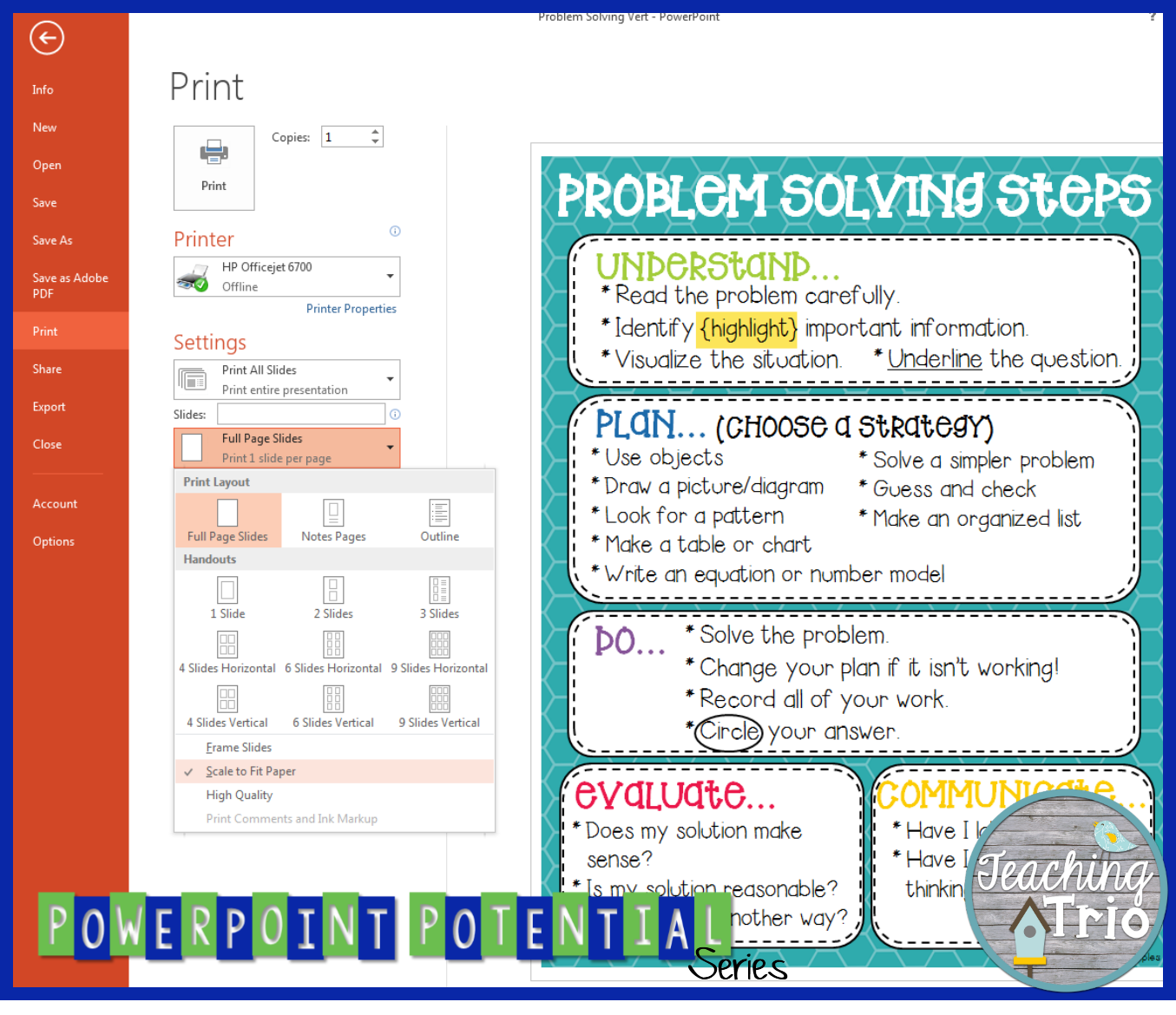
In your print settings, be sure you have selected "Full Page Slides" and check "Scale to Fit." Checking Scale to Fit will put about a quarter-inch white border around the image so that it prints without cutting off the edges (easily one of the most common errors I have seen when printing from PowerPoint).

If the file is printing without all of its graphics, be sure you have selected to print in COLOR, even if you're using a black & white printer. Otherwise, PowerPoint tries to save you ink by not printing background patterns and images. 

That's it for this week's PowerPoint tips. Here's a peek at what we have planned for future posts:
*Embedding fonts
*Manipulating images, shapes, and text
*Saving flattened images
*Creating your own design templates
*Aligning elements
...and more! 

What would you like to learn about PowerPoint? We are looking for ideas for future posts and would love to answer your questions! Leave them in the comments, and don't forget to link up your own Tech Tips! (Don't worry, your posts do NOT have to be PowerPoint related to link up!)

Don't forget to enter our giveaway before you leave! You have through Saturday night to enter, and we will announce a winner in this week's Sunday Scoop! 


Tuesday, November 4, 2014

Introducing Cassie and A Giveaway!

Hello! I am the new addition to The Teaching Trio! I am so excited to be part of this great collaborative blog. This post is going to be all about me. If you want to know even more about any of us click the about us tab at the top to find out some more interesting facts about the little birds behind this blog! 

So... in case you haven't figured it out already, my name is Cassie. I started my blogging adventure at Funky in Fourth. Kristen and Juliet asked me a few weeks ago if I wanted to join them on this blog and OF COURSE I said YES! I started my blog/TpT adventure about a year and a half ago and I am loving the amazing friendships that I have made along the way. Joining this collaborative blog is just another example of the amazing friends I have met.

Here are some about me facts. I have been married to an amazing man for over 4 years. We have the "lovey dovey" type relationship that every girl dreams of. I honestly believe he completes me.
We have two lovely "fur children". They are our entire life right now. Frankie and Gracie have total rule of the house! Frankie is my little man and he often poses in pictures with his cray-cray momma. Gracie is a daddy's girl. She follows him EVERYWHERE and whines when he leaves. She is also known as the diva in the house. She loves photos and you will see that she loves to photo bomb when mommy is taking pictures!
 
We live in a small town in northern Minnesota. No sarcasm with the "small" town... we have one stoplight in our town!! I teach fourth grade at an elementary school that has about 600 students k-6. I teach at the same school that my husband attended. This is my second year teaching and I am loving every single minute of it. We live about an hour from where I grew up so we both have tons of family in the surrounding area. Family is extremely important to both of us. My parents have encouraged me my entire life to pursue my dreams. I wouldn't be where I was today, without them. I have an older sister and a younger brother. My big sis is a graphic designer! She has all of the artistic ability in the family. My little bro is a huge inspiration to me {you can read more about that on the about us page}. He is ten years younger than me and the things he does amazes me every day. I also have an amazing brother-in-law and some pretty great parents-in-law. I am so jealous of all of you that have nice weather mostly year round. Here, we have snow for about 5-6 months of the year, with lots and lots of snow from December-March. My poor puggies hate being cold! 
As far as my teaching career goes... it is a small one. I graduated in December of 2012 from the University of North Dakota with honors. I graduated with my bachelor's degree in Elementary Education and a minor in Psychology. We officially moved to my husband's hometown and I started subbing in the same district that I now teach in. I was hired as a fourth grade teacher in August of 2013 for the 2013-2014 school year. After my first year, our school had a huge remodel project and we had to completely move out of the school. That was an experience I will never forget. This year I am teaching fourth grade again and I am thrilled. I seriously love this age and all of the content we teach. Here are a few photos of my "second home" from the beginning of the school year. 
 
 
That is where I spend a good chunk of my time. I usually get to the school early and leave late every day. But, I love every minute of it. My students this year are really excited to learn and that makes me excited to teach! Some other things I love to do is spend time with family, go horseback riding and watch sports. I am a huge sports fan. My husband coaches both football and basketball. So in addition to spending a ton of time at the school in my classroom, I spend a ton of time at the school in the gym! I love watching him out on the court! We are also HUGE hockey fans (go Wild), baseball fans (go Twins) and football fans (I'm a Giants fan and the hubs is a Vikings fan... cough ewww). 
This is about all there is to know about me. I am so excited about joining this blog and meeting so many new people!!

To celebrate my joining, we will be having a giveaway! Check out the Rafflecopter below for your chance to enter to win $10 to each of our TpT stores!

But, the celebrating isn't done yet! We will be having a sale in all of our TpT stores starting today through Thursday!! Go get some goodies for 15% off! I am looking forward to getting to know all of you and becoming a part of this blog! Oh and thank you for taking the time to read this LONG about me post!!


Sunday, November 2, 2014

Sunday Scoop! Can you guess who? 11/2/14


The Sunday Scoop is based on the popular 3-2-1 graphic organizers so many of us use with our students. Tell us three things you HAVE to do, two things you HOPE to do, and one thing you're HAPPY to do (because these days, we could all use a little motivation to find something to be happy about every week!). It's a short and sweet way to connect with each other every Sunday (or Monday... the linky will stay open all week!)


Here's what to do:
1. Just save the image above, add your text to it (we use PowerPoint), and post! You don't even have to explain yourself any further if you don't want to.
2. Include the button above and a link to our  blog on your post.
3. Link our post up here on Sunday morning (or whenever :) )
4. Be a good blog reader, and leave some love for the two posts before yours!

Here's the Scoop on my week...


Kristen and I (Juliet) will still be here!  We are adding a new 3rd!  So excited and can't wait to add her to our "flock"!


Thursday, October 30, 2014

Tech Thursday: Blocking Ads Online


Technology Thursday is a weekly linky dedicated to all things technology related. Share reviews of websites or apps you've tried, tech tips that make your {teaching or personal} life easier, and helpful tutorials. Our hope is that this linky provides a place for teachers to share and learn new ways to use technology and engage students!

Be a rule follower!
Rule #1: Include the image above and a link to our blog somewhere in your post.
Rule #2: Be a good blog reader...visit the two blogs who link up before you and leave some love on their pages!
Rule #3: This linky is not intended for product promotion. You may include products you've created in your posts, but they should not be the sole focus of the post.

How many times have your students been on a perfectly legitimate educational website, and BAM! an ad pops up on the sidebar that is totally inappropriate and not at all related? I'm talking about the bikini-clad woman selling diet pills that sends your students totally off-track... or worse! It happens to me all the time! If you can convince your students to use Google Chrome as their web browser (or do like I did, and make it nearly impossible to even find Internet Explorer on our classroom computers!), there's a plugin that will totally fix your problem.

Google AdBlock is a FREE plugin for Chrome that removes almost every ad from websites! Installing couldn't be easier, just follow this link. Where I have "Added to Chrome" in the right hand corner, you will see "Add to Chrome" instead. Click the button, and you're done! FYI - depending on how your students log in, this might have to be done for each student.

It even shows you a little counter in the top right hand corner of the browser with how many ads have been blocked. I've seen this number in the 20s or 30s after a little while on Facebook! It even blocks those annoying auto-play video ads!

Don't forget to link up your tech tips and leave some love for the links ahead of you!